![[ AV Educate ]](http://images.squarespace-cdn.com/content/v1/65b8078755ddd303f05675d7/db23e407-0671-4a73-bd96-304f51d3176c/SOCIAL+MEDIA+ICONS.png?format=1500w)
![[ AV Educate ]](http://images.squarespace-cdn.com/content/v1/65b8078755ddd303f05675d7/8f6939e4-c0d0-4eed-8821-4aaa02343b89/SOCIAL+MEDIA+ICONS.png?format=1500w)
What Is AOI? Understanding Area of Interest in Video Formats
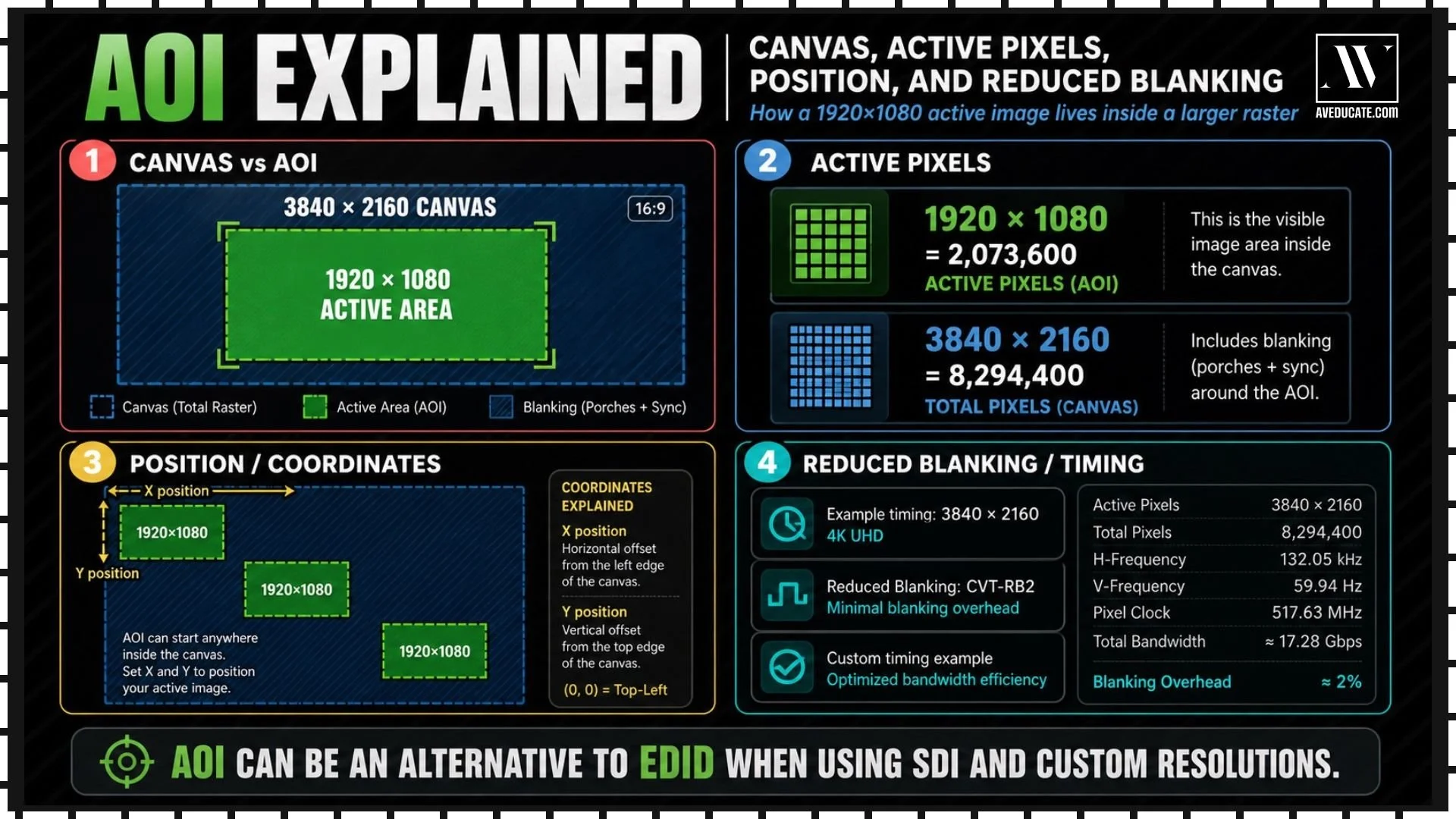
In live events, we often talk about resolution like it is one simple number:
1920x1080, 3840x2160, 2560x1440, and so on. But when you start working with screen switchers, projectors, LED processors, custom formats, and SDI workflows, resolution becomes more than just the image you see on screen. Sometimes the video signal is carrying a larger canvas than the actual image you want to display.
That is where AOI, or Area of Interest, becomes important.
AOI stands for Area of Interest. In simple terms, it tells the system:
“This is the part of the larger canvas that I actually care about.”
The rest of the signal may still exist, but it may not be part of the visible image you are trying to use.
Start With the Simple Idea: Four 1920x1080 Images
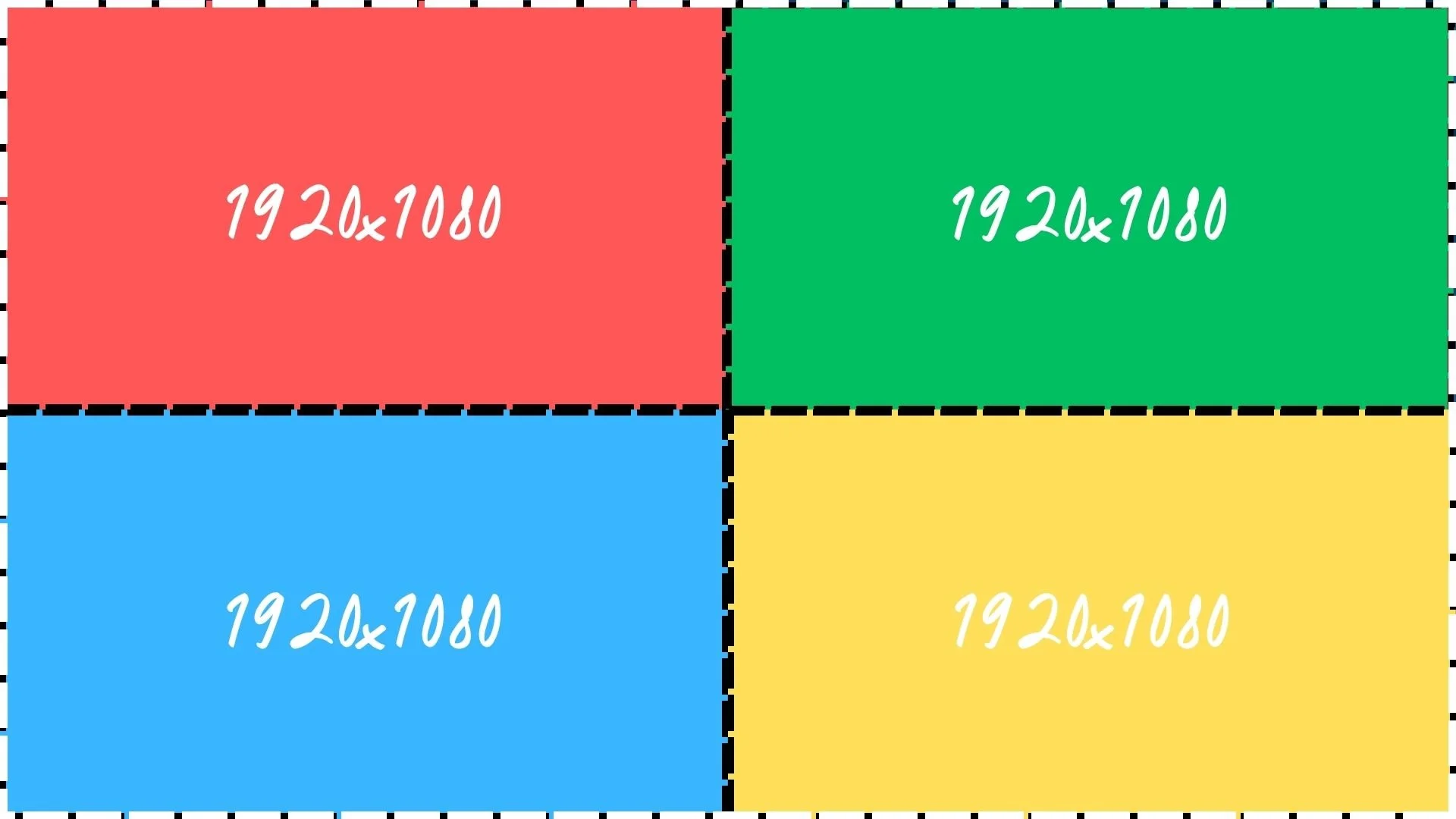
4× 1920×1080 inside a 3840×1080 Canvas
In this first example, we have four separate 1920x1080 areas.
Each box is the same standard HD resolution:
1920 pixels wide by 1080 pixels tall
That means each section has:
1920 x 1080 = 2,073,600 active pixels
This is why we often call 1920x1080 “about 2 million pixels.”
At this point, everything feels simple. Each section is a normal 16:9 image.
Canvas vs. Active Image
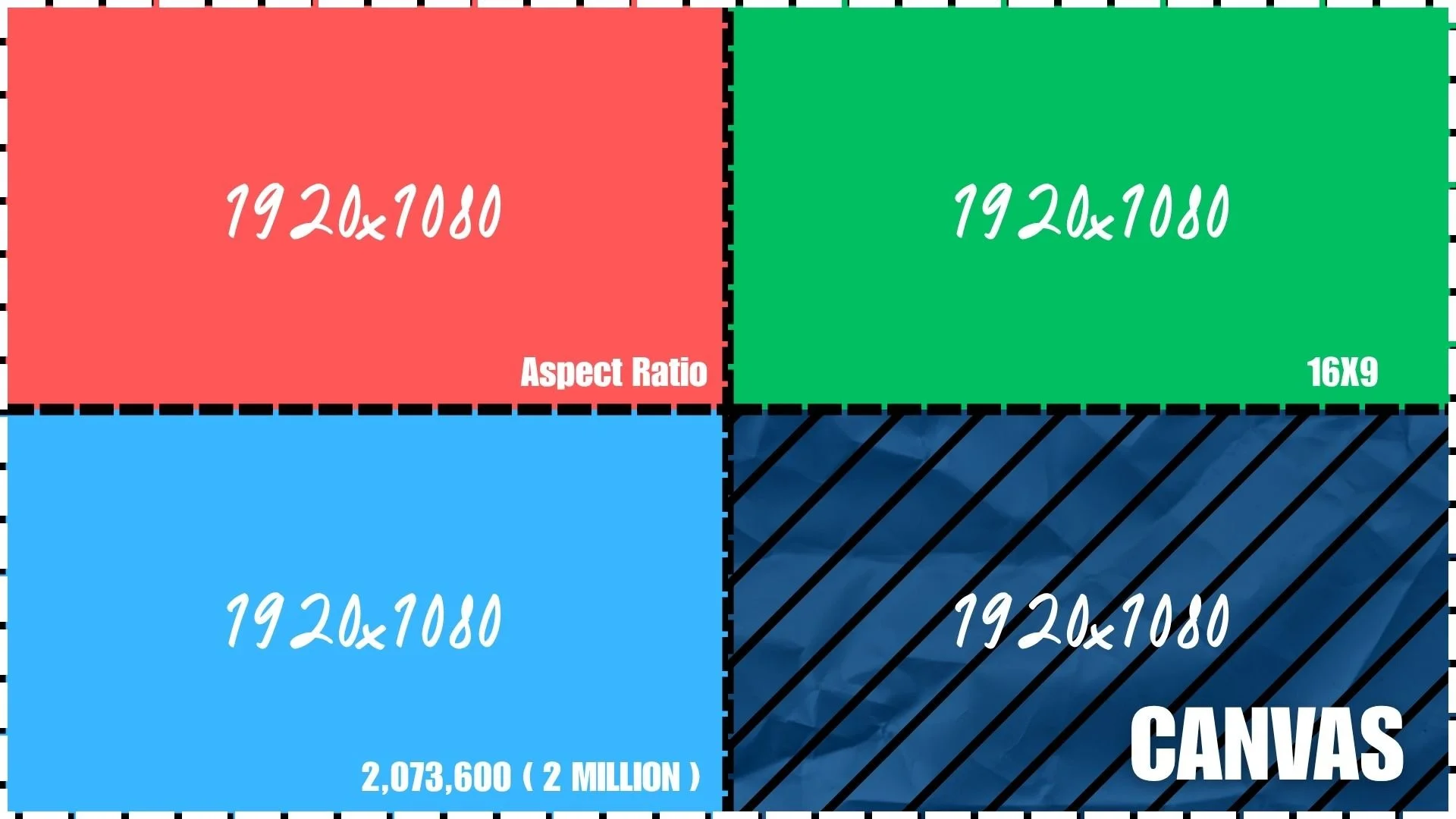
Canvas + Aspect Ratios
Now we introduce the idea of a canvas.
A canvas is the larger video space that your processor, switcher, or projector is working inside.
The canvas might be larger than one single 1920x1080 image. For example, a system might be using a larger raster such as 3840x2160, which is four times the pixel area of 1920x1080.
That full canvas contains:
3840 x 2160 = 8,294,400 pixels
That is about 8 million pixels.
But here is the important part:
Just because the full canvas exists does not mean the full canvas is the active image you want to display.
You might only care about one 1920x1080 section inside that larger canvas.
That one section is the Area of Interest.
What AOI Means
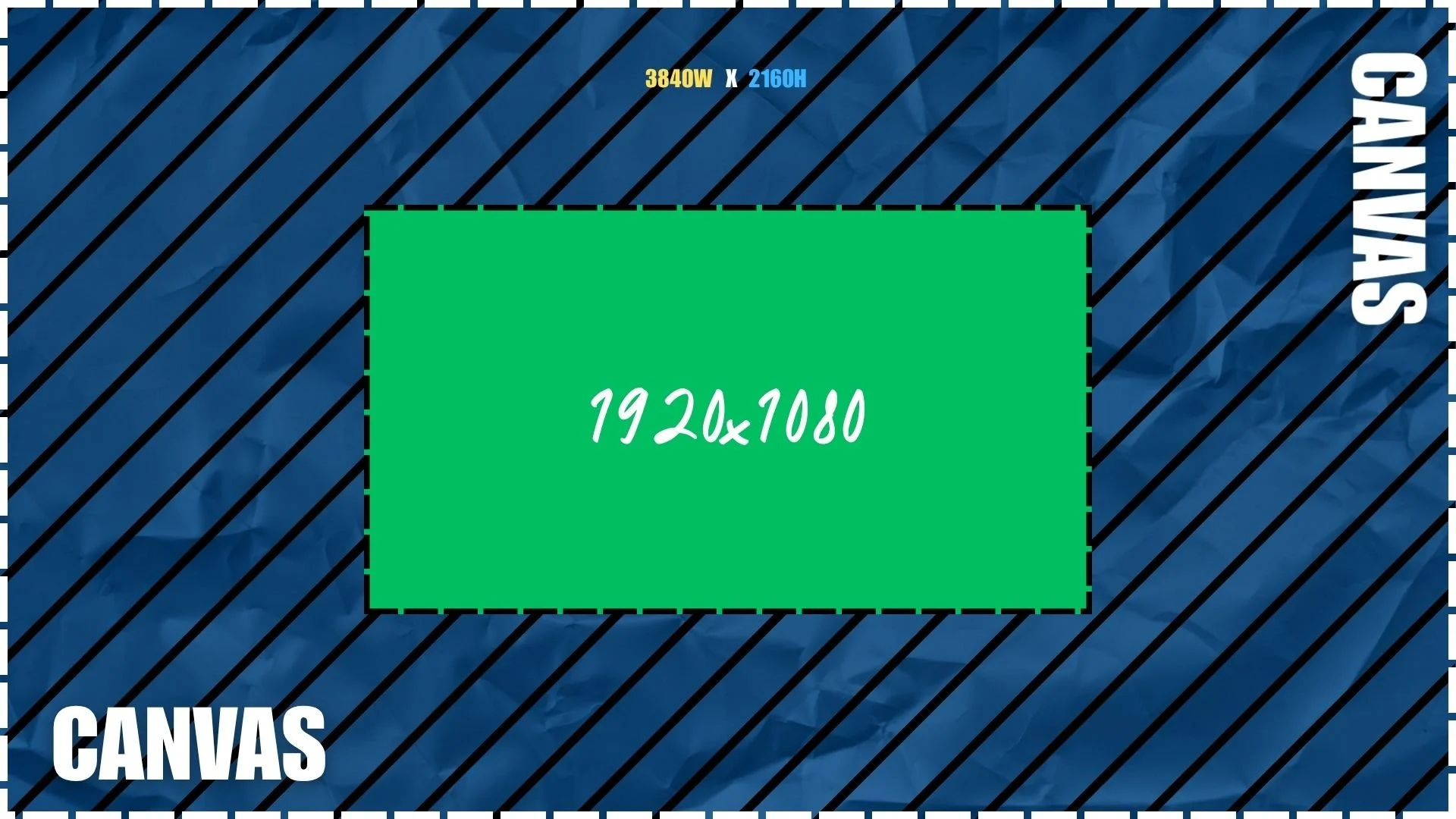
What is a Canvas?
AOI is the selected active image area inside a larger canvas.
In this example, the full canvas is larger, but the active image is only:
1920x1080
The green box represents the image we actually care about.
The gray area around it still exists as part of the larger signal structure, but it is not the active image area we are using.
This is the part that confuses a lot of technicians.
The system may say the signal is one large format, but the image you are trying to display may only live in one smaller part of that format.
That smaller part is the AOI.
Active Pixels vs. Total Canvas
Back Porch vs Front Porch
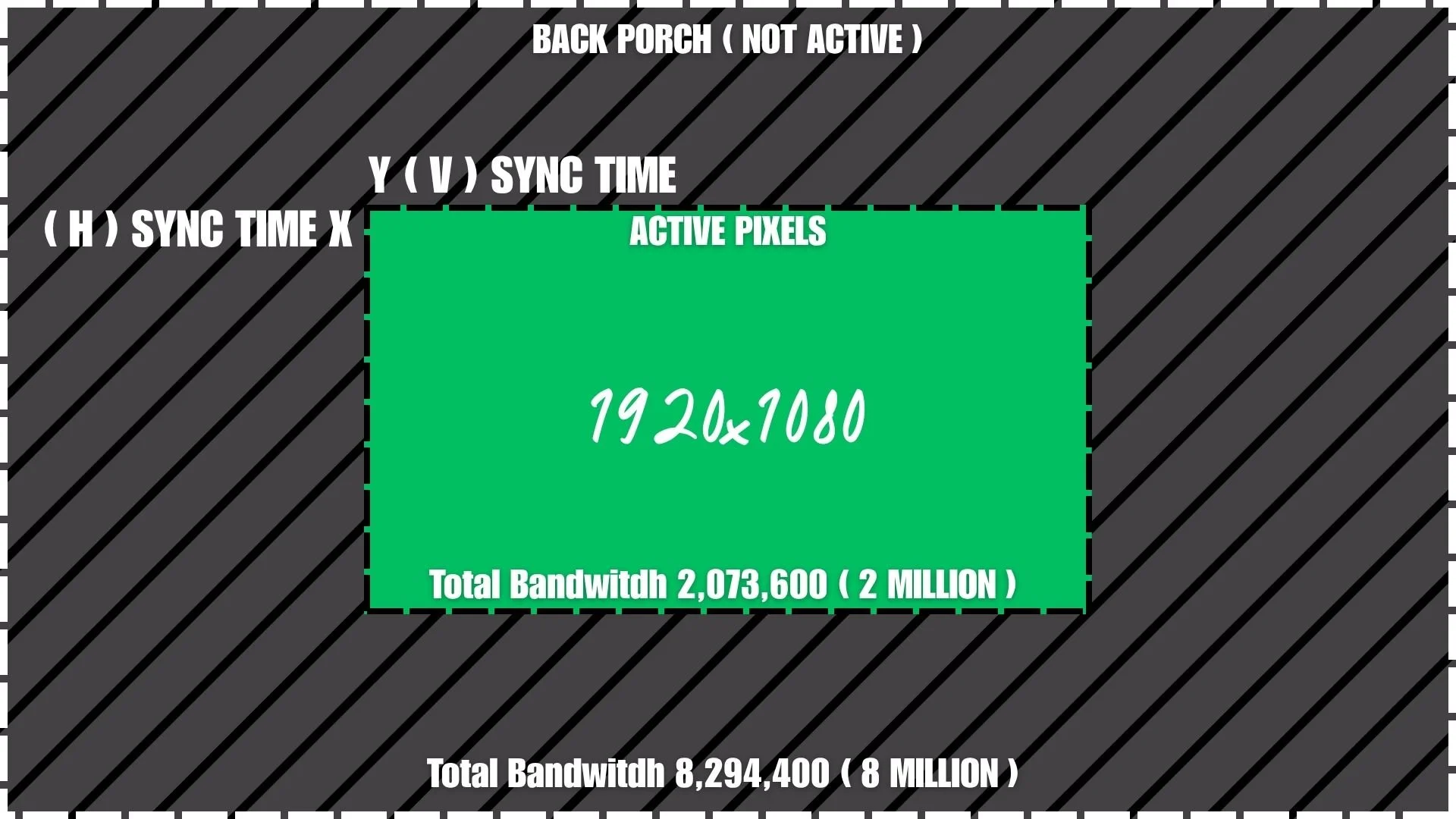
This is where the difference between active pixels and the full signal becomes important.
The active pixels are the actual visible image area.
For 1920x1080, the active pixels are:
1920 x 1080 = 2,073,600 pixels
But the full canvas may be much larger.
For a 3840x2160 canvas, the total pixel area is:
3840 x 2160 = 8,294,400 pixels
That means the signal can be carrying a much larger structure than the part we are actually displaying.
In the image, the green 1920x1080 section is the active image. The surrounding area represents the rest of the canvas, timing, or unused space depending on how the format is built.
This is why it is important not to assume that the listed format always equals the visible content.
Reduced Blanking and Non-Active Areas
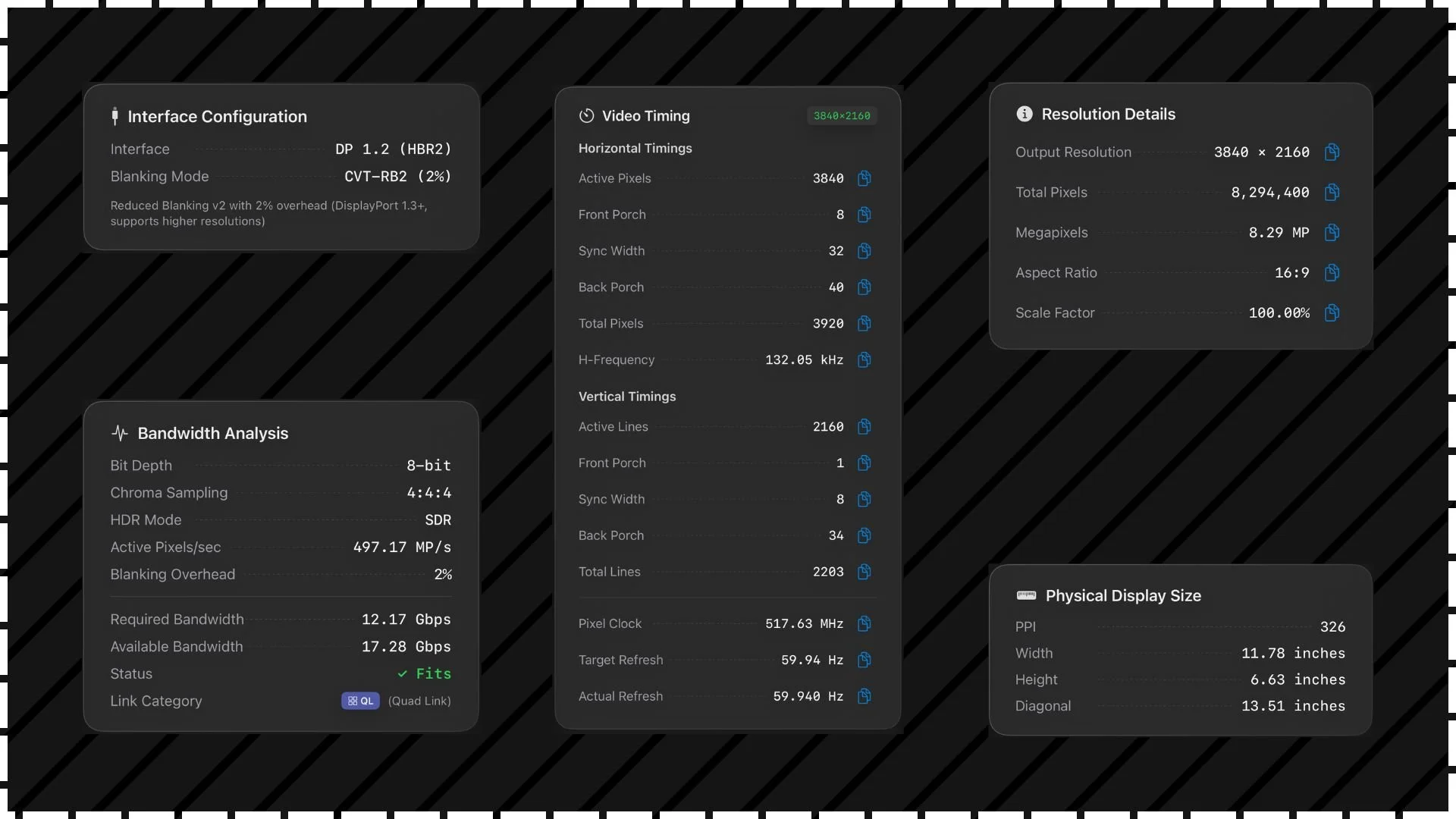
RV - Reduced Blanking Visual using App ResEditor
In video timing, there is more happening than just the visible image.
A video signal can include active pixels, sync timing, front porch, back porch, and blanking areas.
The active pixels are what we see.
The blanking and porch areas are part of how the signal is structured and timed.
In modern custom formats, especially when using reduced blanking, we are trying to minimize unnecessary timing space while still creating a signal the system can understand.
So when we say:
“The active image is 1920x1080, but the format or canvas is larger,”
we are really saying the visible part of the image is only one portion of the signal structure.
AOI helps the system identify where that visible image lives.
X and Y Coordinates: How the System Finds the AOI
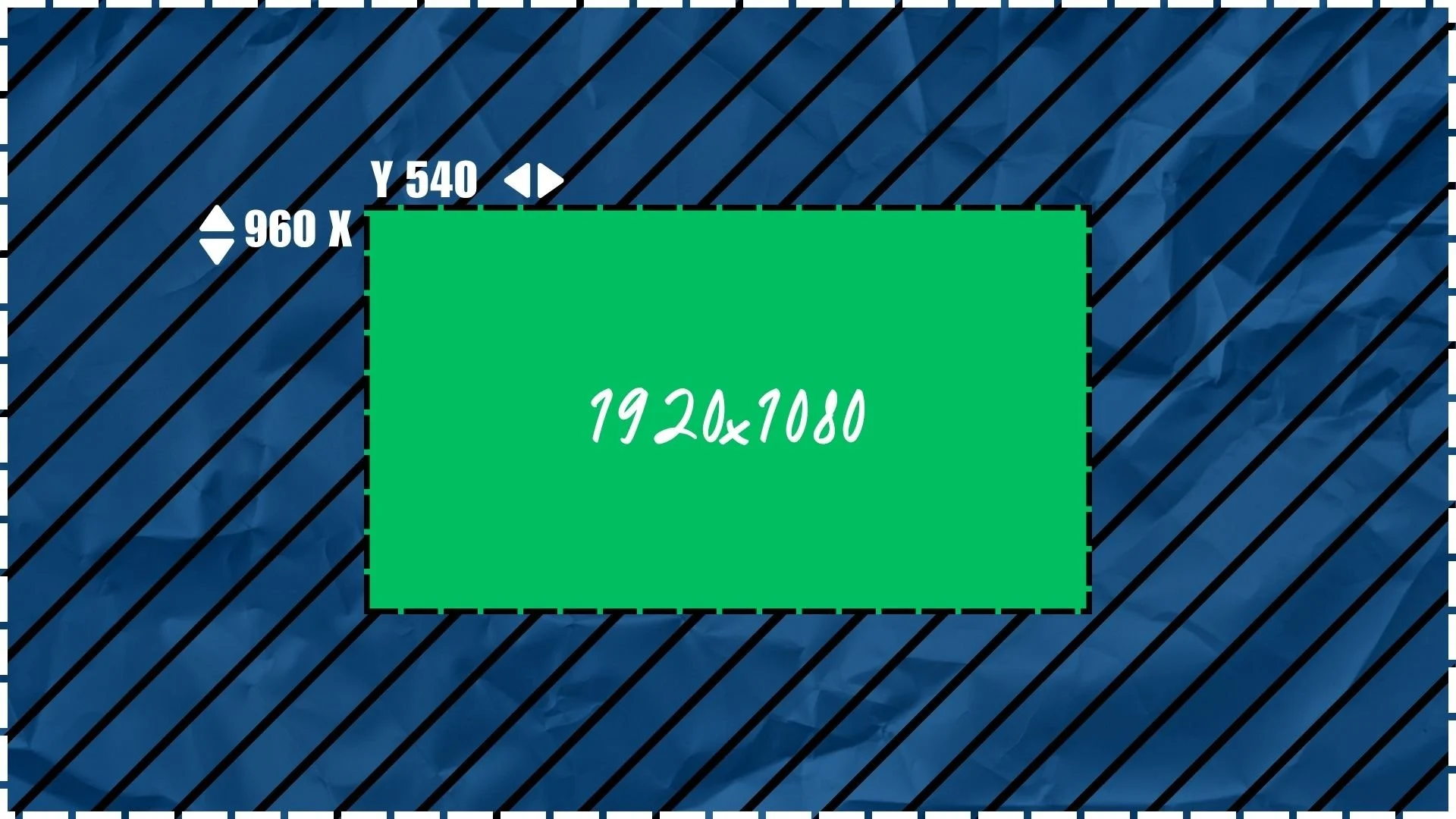
X & Y Coordinated Simple
AOI is not just about size. It is also about position.
The system needs to know where the active image starts inside the larger canvas.
That is where X and Y coordinates come in.
Think of the canvas like a map.
X is the horizontal position.
Y is the vertical position.
If the image starts at the top-left corner, the AOI may begin at:
X = 0, Y = 0
But if the image is shifted somewhere else inside the larger canvas, the AOI may start at a different X and Y position.
This tells the processor or projector:
“Start looking here. This is where the image begins.”
A More Advanced AOI Example
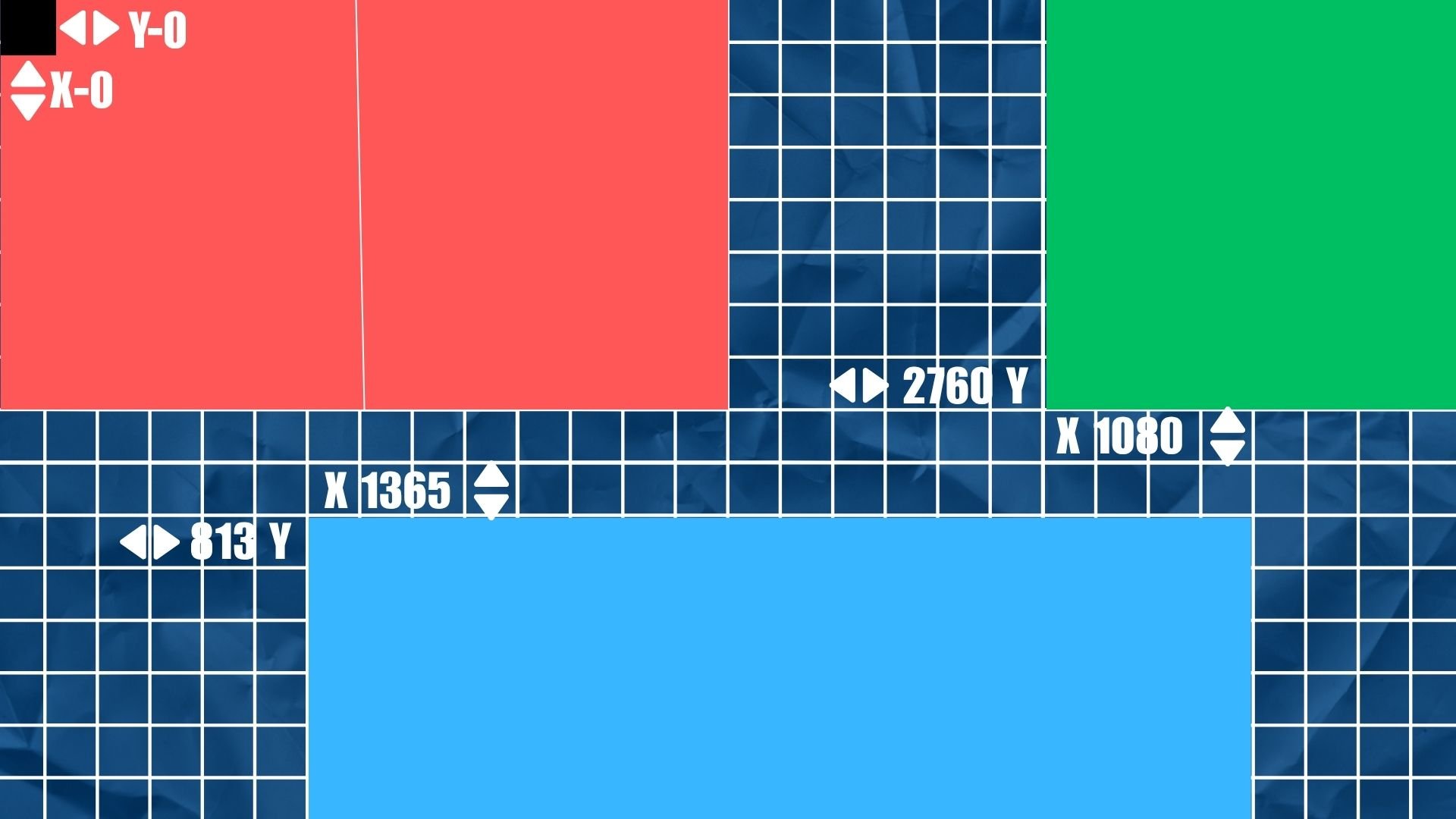
X & Y Coordinated Advanced
In a more advanced setup, you may have multiple active areas inside one larger canvas.
For example, one area may start at one coordinate, while another section starts somewhere else.
This becomes important when dealing with:
Screen switchers
Multi-output processors
Projector mapping
LED processors
Custom canvas layouts
SDI workflows
Non-standard screen sizes
Wide-screen or blended displays
The image may not always begin at X = 0 and Y = 0.
Sometimes the content is offset inside the raster, and you need to define exactly where it lives.
That is the purpose of AOI.
Why This Matters on Real Shows
This matters because the projector, processor, or switcher may not automatically understand what part of the signal you actually want.
You might send a signal that technically has a large format, but the image you want is only inside one portion of it.
If the system looks at the wrong part of the canvas, you may get:
A cropped image
A shifted image
A blank screen
Only part of the content
A projector showing the wrong section
A processor scaling the wrong area
A mismatch between the switcher and display
This is why understanding AOI is so important.
You are not just asking, “What resolution is this?”
You are asking:
What is the full canvas?
What part of that canvas is active?
Where does the active image start?
What is the active width and height?
What part of the signal should the display use?
That is AOI thinking.
AOI vs. EDID
EDID is normally how a display tells a source what formats it supports.
The display says something like:
“I can accept 1920x1080 at 60Hz,”
“I can accept 3840x2160 at 60Hz,”
“Here are my preferred timings.”
That works well in many HDMI and DisplayPort workflows.
But in SDI workflows, we do not always have EDID in the same way.
SDI is not usually asking the display, “What do you support?” the way HDMI does. Instead, we often need to manually define the format, timing, raster, and active image area.
That is where AOI becomes extremely useful.
AOI gives us another way to tell the system:
“This is the format we are sending, but this is the exact area of the canvas we want to use.”
Final Thought
AOI is best understood as the active window inside a larger video canvas.
The full signal may be larger than the image you actually need. The canvas may include unused areas, blanking, timing, or other image regions. AOI tells the system where the active image starts and how large that active image should be.
For AV techs working with screen switchers, projectors, processors, custom resolutions, and SDI signal paths, AOI is an important concept to understand.
It is not just about resolution.
It is about knowing where the real image lives inside the signal.
And when you are using SDI cables and need to work with custom resolutions, AOI can become an alternative approach to relying on EDID.